

Ally Quick Start
High-Impact Accessibility Fixes (Without Rebuilding Your Course)
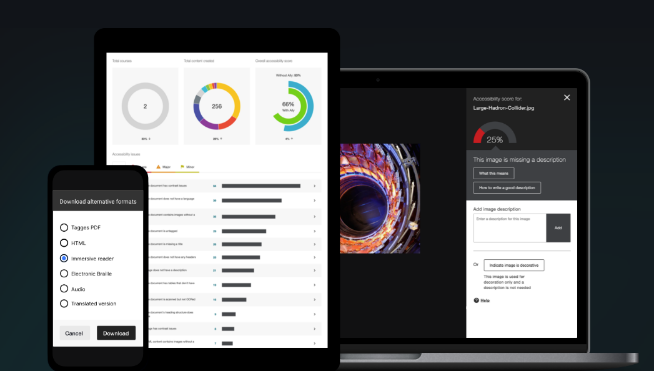 What Ally Is (and Isn’t)
- ✅ Is: A tool that helps students access your content in multiple formats
- ✅ Is: A way to quickly improve usability and clarity
- ❌ Is NOT: A requirement to reach 100% or redo your entire course
1️⃣ Where to Find Your Accessibility Score
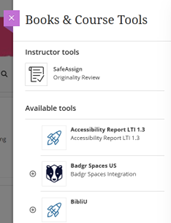
- Open your course
- Go to Details & Actions
- Select Books & Tools
- Open Accessibility Report (LTI 1.3)
👉 Your score reflects content types, not teaching quality.
2️⃣ Common Ally Issues
These are normal—and fixable:
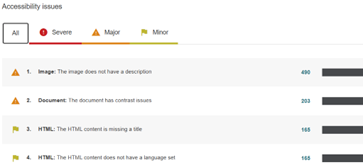
- ❌ Images without alternative text
Cell diagrams, anatomy illustrations, micrographs - ❌ Scanned PDFs
Lab manuals, worksheets, old articles - ❌ Charts or graphs explained only by color
“The red line shows…” - ❌ Tables without headers
Data tables copied from Word or PDFs
NOTE: Links to what the issue is and how to fix it are listed on each item inside Ally.
3️⃣ What NOT to Worry About (Yet)
- ❌ Getting to 100%
- ❌ Fixing optional or unused content
- ❌ Rebuilding publisher materials unless required
Progress > perfection
4️⃣ Start Here: Highest Impact, Lowest Effort
Focus on content students must read or use.
✔ Images & Diagrams
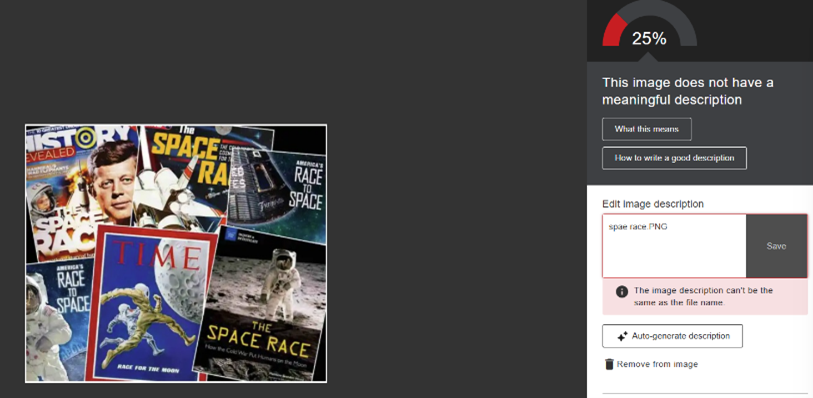
- Add alt text that explains what students need to learn (Ally has AI generated option)
- Example:
- ❌ “Cell diagram”
- ✅ “Diagram labeling nucleus, mitochondria, ribosomes, and cell membrane”
✔ PDFs & Lab Materials
- Use Ally to convert scanned PDFs to accessible versions
- Prioritize:
- Lab instructions
- Safety procedures
- Required readings
✔ Charts & Tables
- Add table headers
- Briefly describe trends or outcomes in text
5️⃣ A Simple, Sustainable Workflow
Week 1
- Fix top 5 Ally issues
- Focus on images + PDFs
Week 2
- Address lab documents and charts
Ongoing
- Fix content as you reuse it
- Build habits, not backlogs
Ally Training Resources for Blackboard
The following resources are organized into different training categories and are specific to Ally users who have Blackboard as their LMS.
Training Part 1 https://youtu.be/UstNRZzeQSY
Training Part 2 https://youtu.be/_FASF3gvVy4
Training categories:
- Foundational/Introduction to Ally
- About Ally and Accessibility: support article that provides a brief overview of why accessibility matters, and what Ally is.
- Ally for Blackboard Ultra: video that provides an overview of Ally for instructors.
- How Ally Looks in your Course: to provide visual awareness of where the different features of Ally are typically located.
- Alternative Formats
- Choose your own Alternative Format for Blackboard Learn Video: video that explains how to download alternative formats in Blackboard. Remember that alternative formats are also available to instructors!
- Alternative Formats: link to a support article that includes the video above and a description of the alternative formats feature.
- Alternative Formats FAQ: support article that walks through commonly asked questions referring to alternative formats.
- Instructor Feedback
- Ally's Accessibility Scores: support article including information on Ally’s accessibility scores, including the types of content Ally checks and the score ranges.
- Using Instructor Feedback to check the accessibility of individual files: support article that provides guidance on how to access the Instructor Feedback panel and use the guidance provided.
- PDF Quick fixes: support article walking through our new PDF quick fixes that address 3 common PDF accessibility issues: scanned PDFs, missing language set, and missing title.
- Improving content Accessibility using Ally: includes best practices for creating accessible content, such as fixing broken links, adding headers to documents, etc.
- Instructor FAQs for Ally: comprehensive FAQ of common questions asked by instructors using Ally.
- Using Ally to address WYSIWYG accessibility: WYSIWYG stands for what you see is what you get and refers to the content built directly into Blackboard using the rich content editor. This comprehensive support page walks through how to do this, including a helpful video and breakdown of WYSIWYG content supported in Blackboard.
- Course Accessibility Report
- Course Accessibility Report: support article that describes the Course Accessibility Report, how to find it, and what it entails. The CAR includes 3 guided remediation approaches to help instructors determine a remediation approach.
- Special Features
- AI Alt Text Assistant: support article that provides information on how to use the AI Alt Text Assistant, which uses AI to generate alternative format suggestions for images that have been uploaded as a standalone image/file (not embedded in anything else), or images that have been embedded in WYSIWYG content.
- PDF Quick Fixes




blackboard@southplainscollege.edu
- Amy Shriver, Director
- Heather Medley, Instructional Designer
- Brooke Walker, Administrative Assistant
Connect




Campus Location
Levelland | Technology Center, 201
